
Hi! Hello! Welcome! Or welcome back? I’m Jade, Jade Salty. A 17 year old girl living in Africa, writing a blog . . . Again. (sad I know)
My last blog post was on My top 11 Favorite Unique baby names, you can check that out Here
It’s been a while since I lost posted, but what better way to make a comeback than showing you all my IOS14 Home Screen? I know I’m late on the trend… but I really only achieved how I wanted it to look… last night. How long has the update been out again?
Anyways, here it is and how I did it!
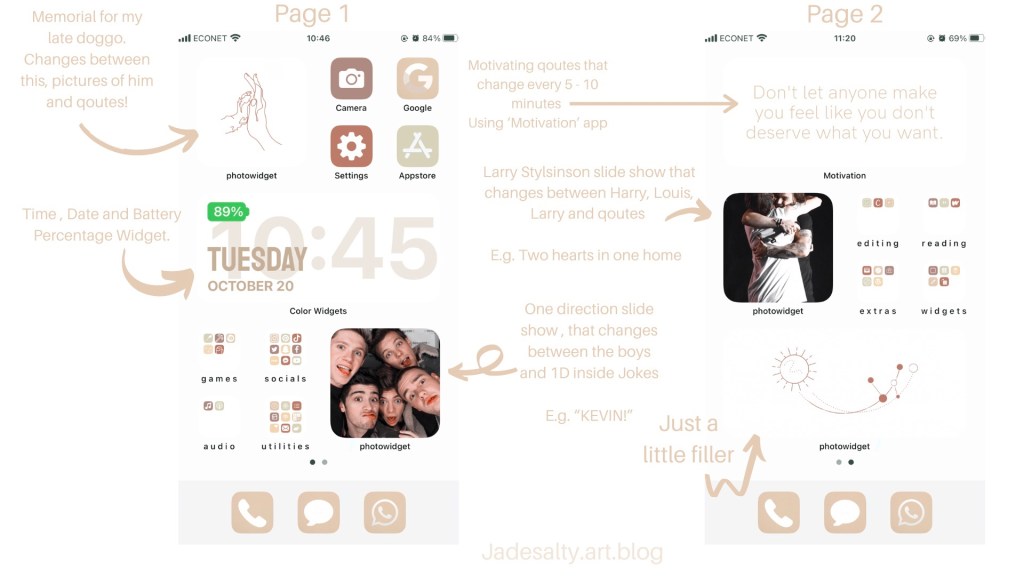
Starting off with the photo slideshows, (they don’t have to be slideshows) I use an called ‘photowidget’ from the App Store.

I’m sure most of you know how to use the app, and all the apps I’m going to mention, but just in case you don’t. To use photowidget, open the app and press the giant plus (+) to create a new album. Select what photos you want on your Home Screen. (weather that be one and multiple)
Once you’ve selected the photos you want, exit the app, press and hold an empty space on your screen until all your apps start to jiggle and press the plus (+) on the upper right hand corner of your phone. Scroll done and select ‘photowidget’ and select the size widget you want. Add widget to your Home Screen, tap the widget and select the album you want and the duration you want each picture to stay there.
I really hope you understand that, because I’m not sure if I do.
Now on to the time/date/battery percentage widget. Download the ‘color widgets’ app from the App Store
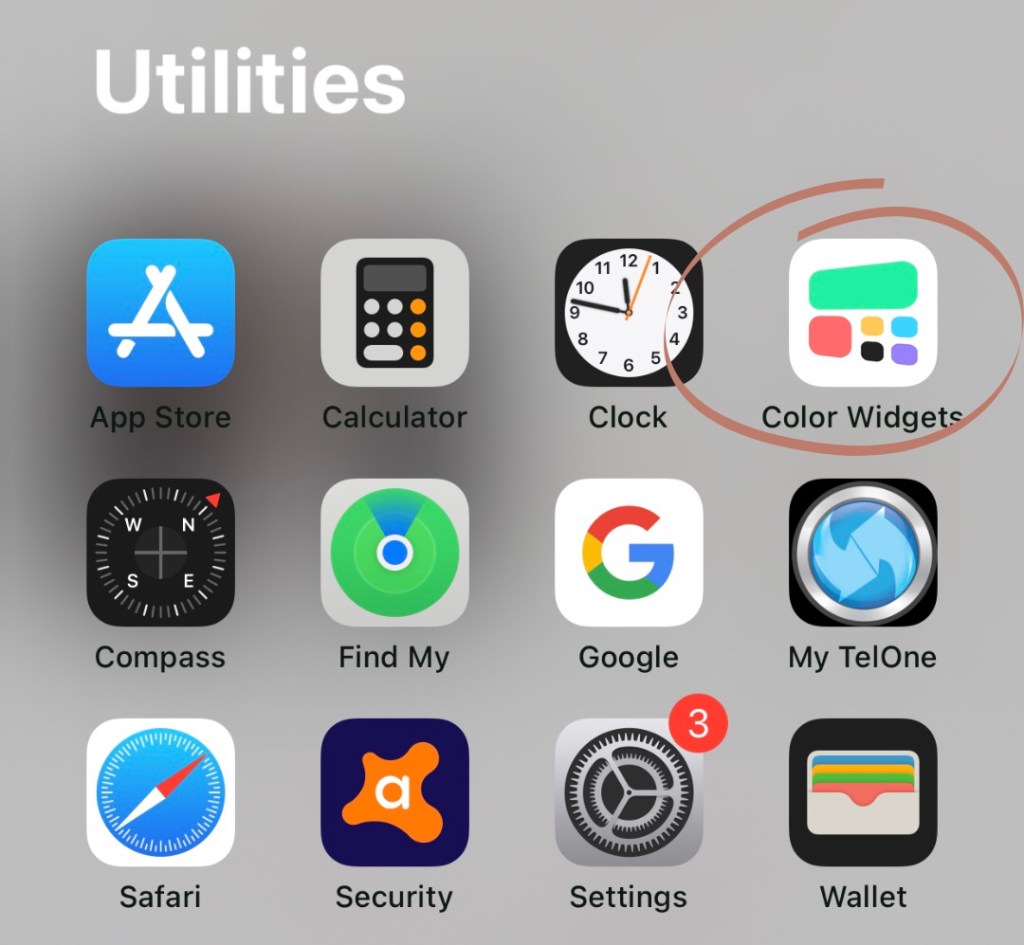
Open the app and just scroll until you find which one you like, or just customize one to your taste!
Select the chosen widget and tap ‘set widget.’ Exit the app, press and hold on an empty space on your Home Screen until you enter jiggle mode. Once again, press the plus(+) on the upper right corner of your screen and scroll until you see ‘color widgets.’ Chose what size widget you want and add it to your Home Screen.
That’s it! Easy right?
Now onto making your apps all pretty and fancy! It’s really complicated and takes forever by the way!
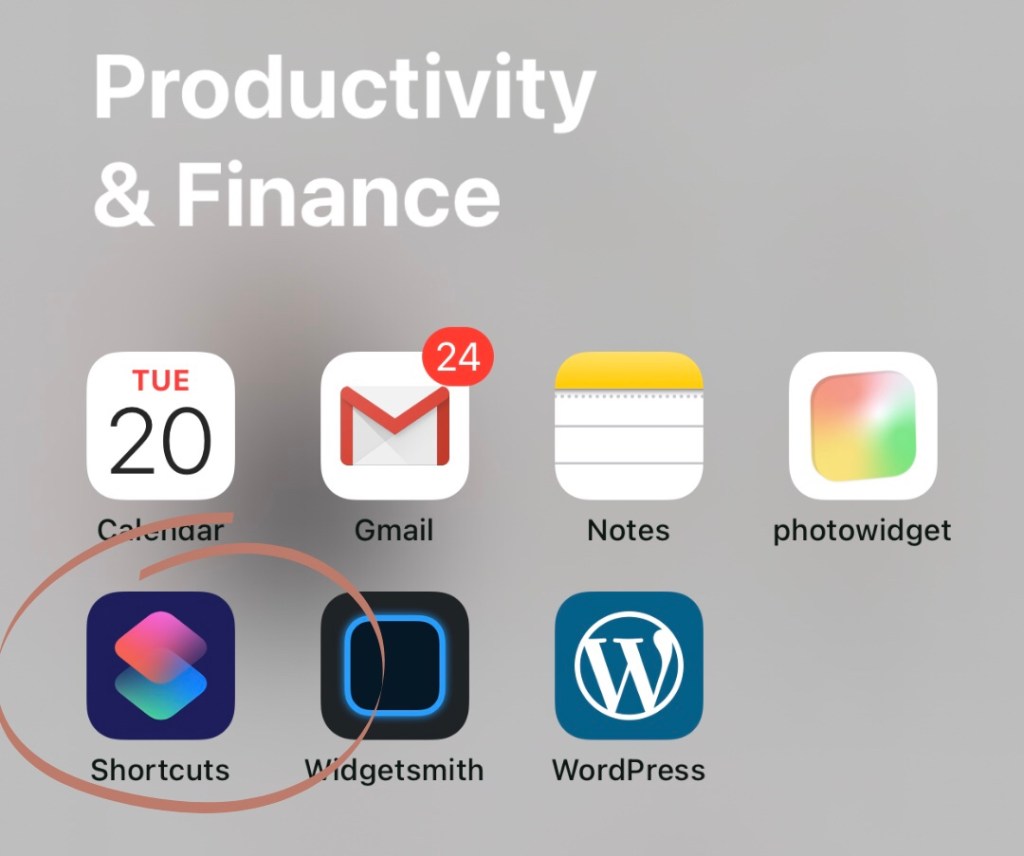
Download the ‘shortcuts’ app from the App Store
Aswell as ‘app icon maker’ from the App Store, if you want to create your own color palette and icons.
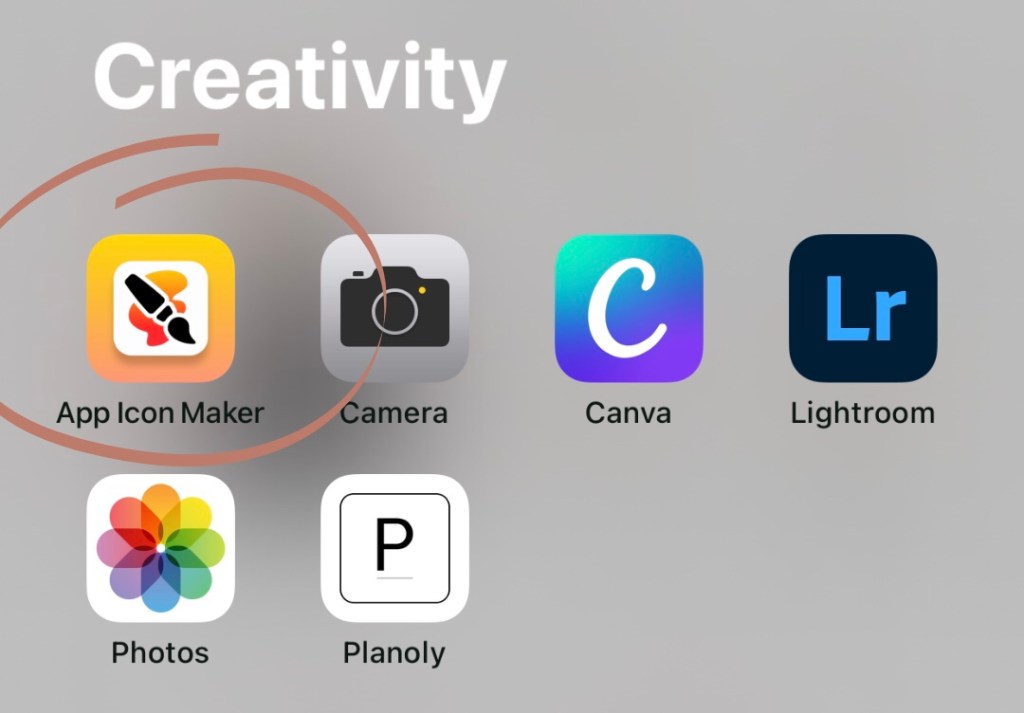
It’s pretty simple to use, just open the app, tap ‘edit icons’ and you choose the icon, icon color and background color. Save to photos and then use shortcuts to set them as your app icon.
If you don’t feel like making your own icons, just go onto Pinterest and I’m sure you’ll find a whole bunch. If you like mine, here it is!
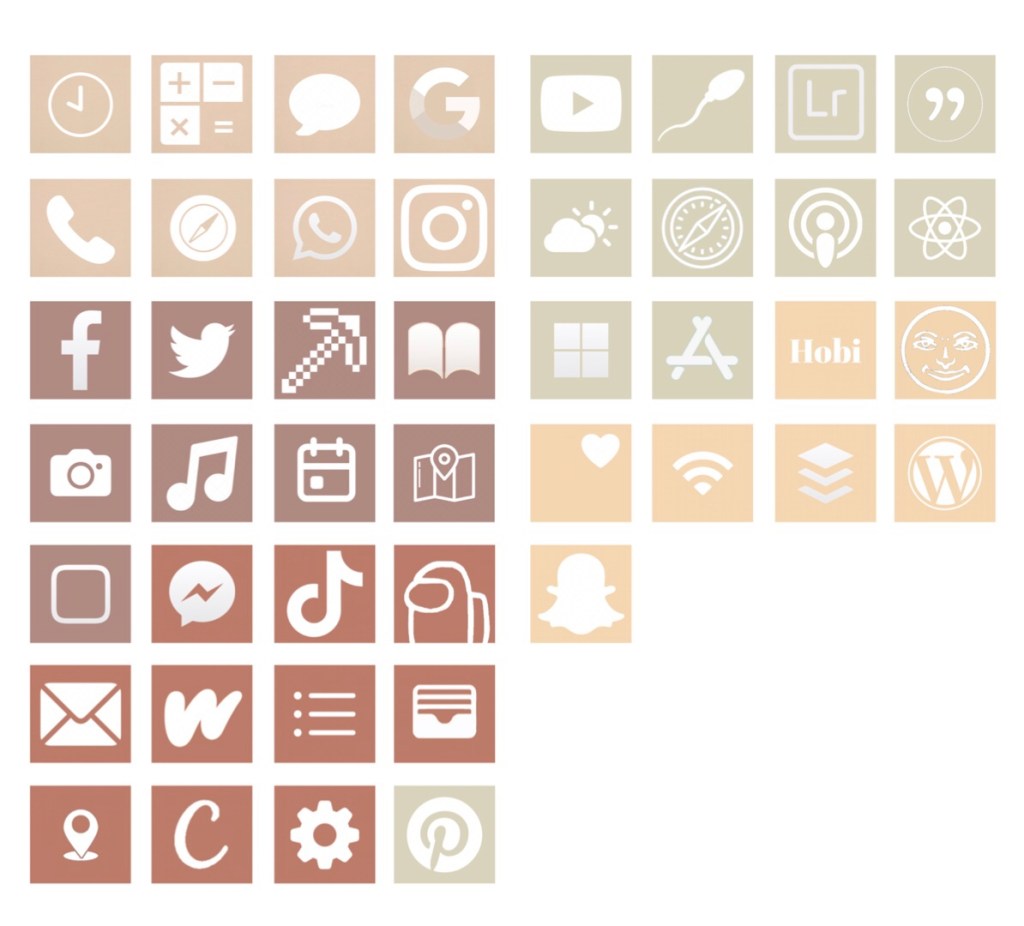
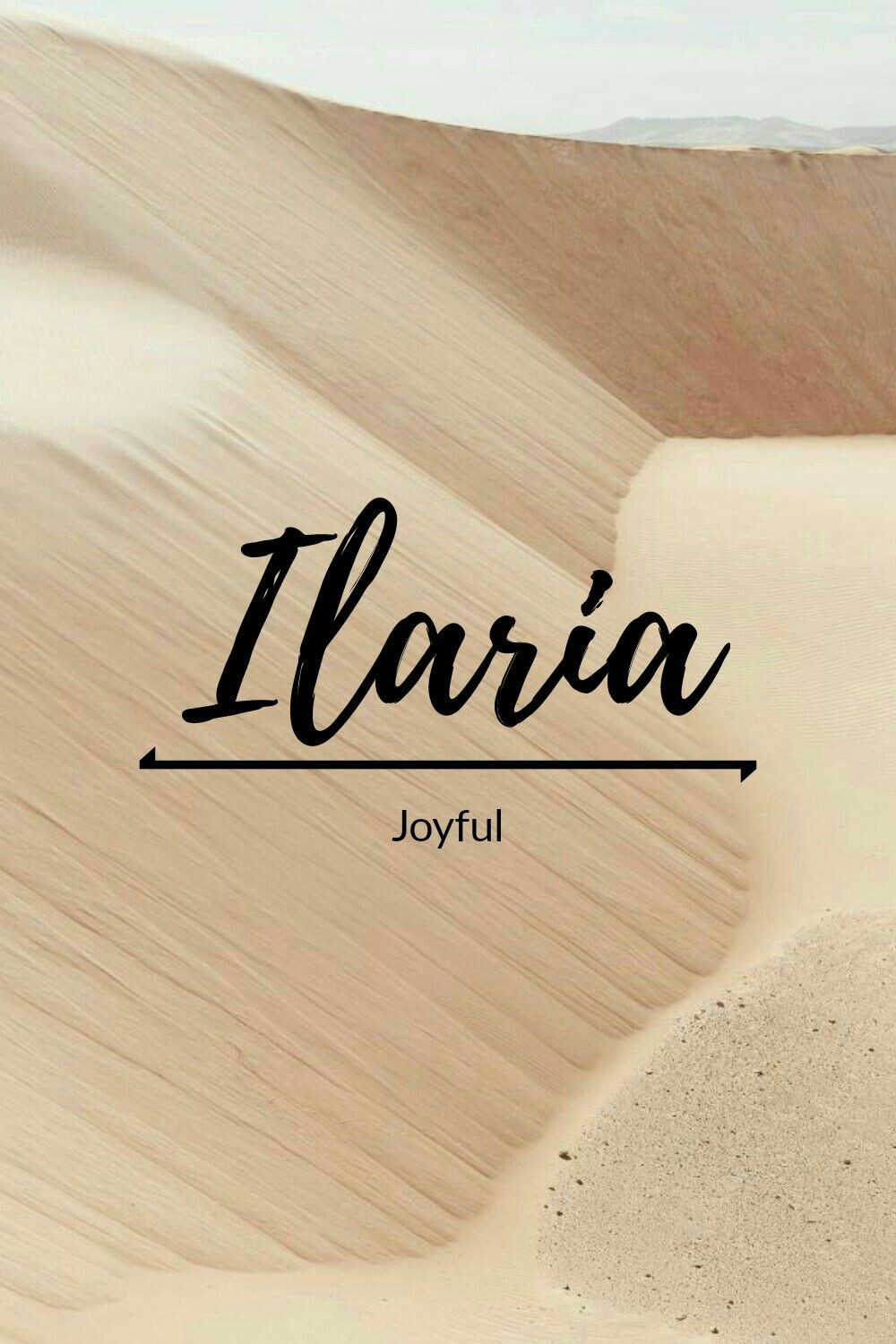
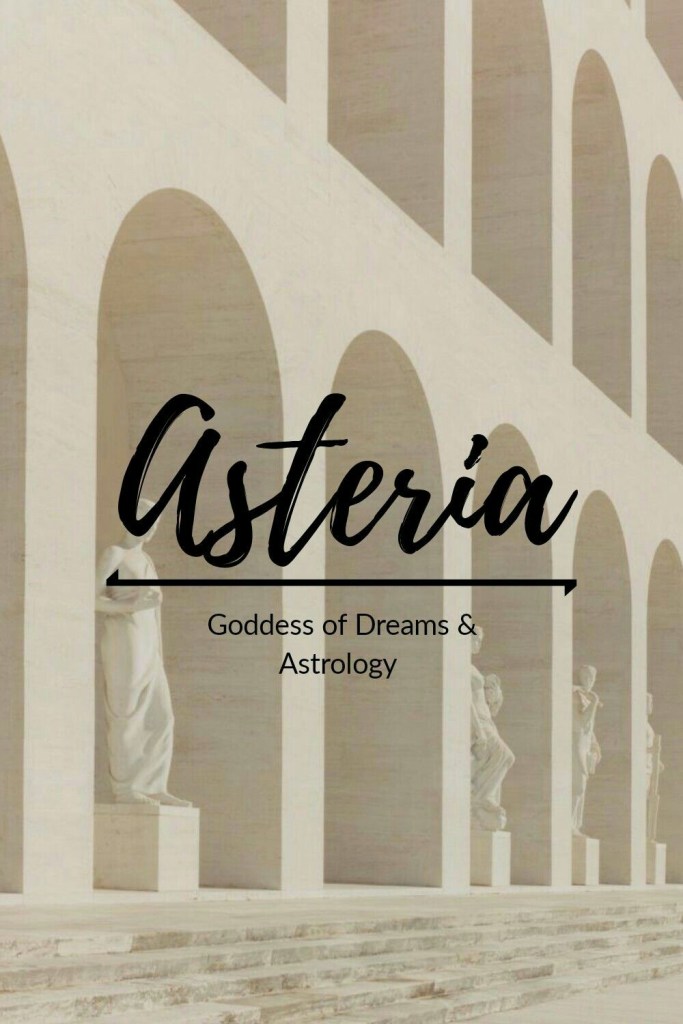
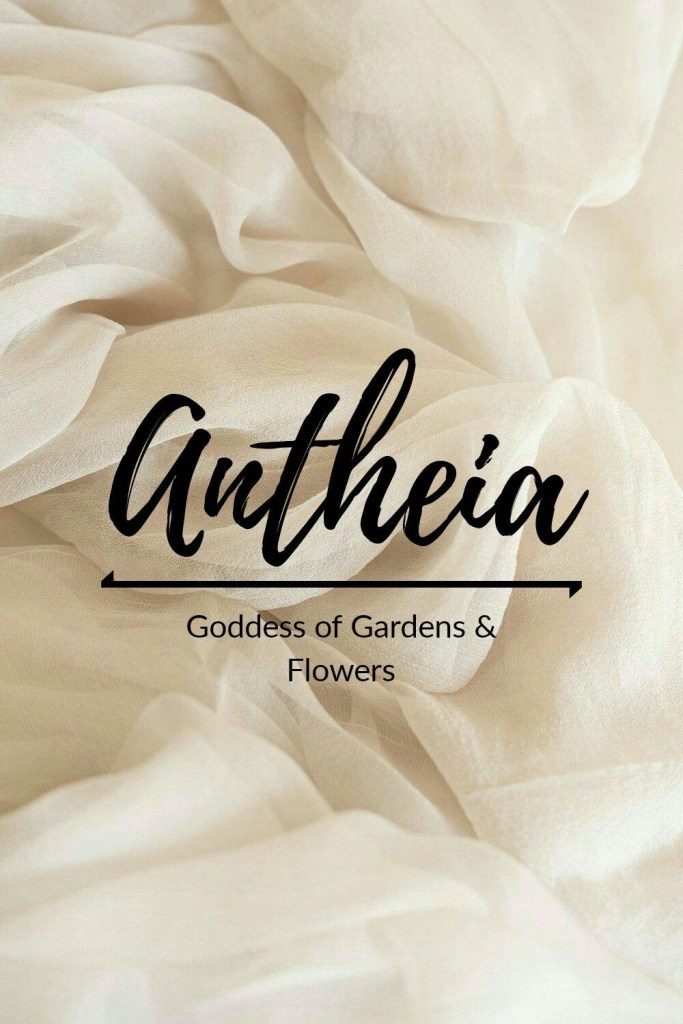
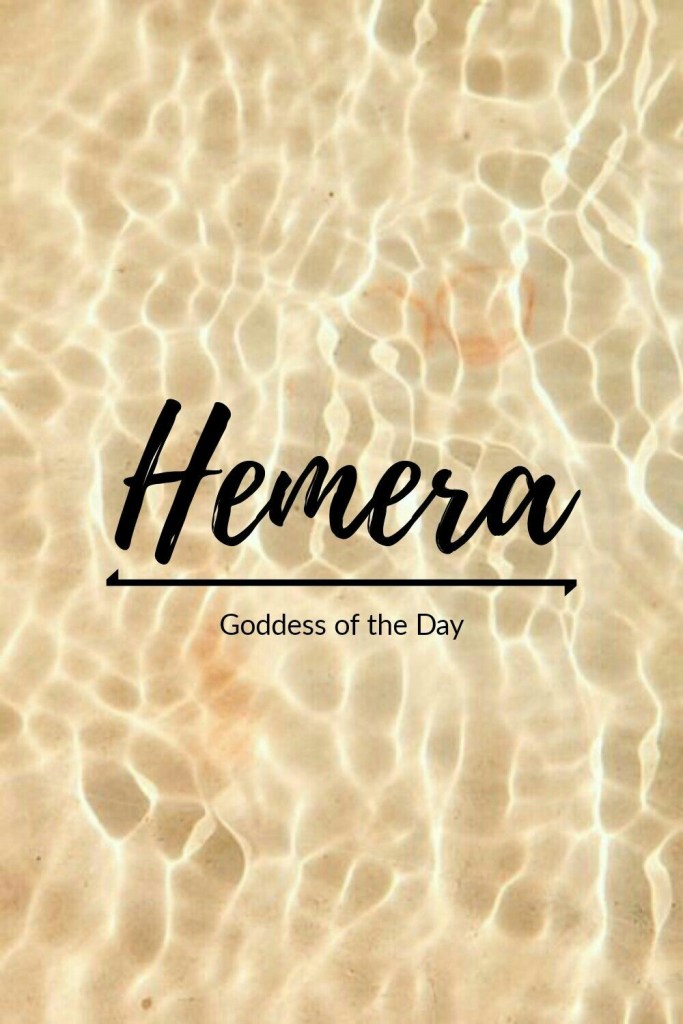
Just screenshot and crop, may take a while but you got to do what you gotta do.
Now. . . Shortcuts, the thing that literally takes forever! I suggest watching a video on this because I simply don’t think I’d be able to explain it properly. I’ll give it a try though, but you’re probably not going to understand.
> open app
> tap the plus (+) on the top right hand corner
> tap ‘add action’
> search for ‘open app’
> tap ‘open app’ and tap ‘choose’
> search the app you want to customize
> select the app and the press the three dots (…) in the upper right hand corner
> name the shortcut
> tap ‘add to home screen’
> name the app (e.g. Pinterest)
> tap the icon and select ‘choose photo’
> select the icon you made
> tap ‘add’ in the upper right hand corner
And you’re done!
Long process but not that difficult. I know that you can make custom ring tones and charging tones but that you’ll definitely have to look up.
And if you want the color scheme that I used but not the same icons, here you go!
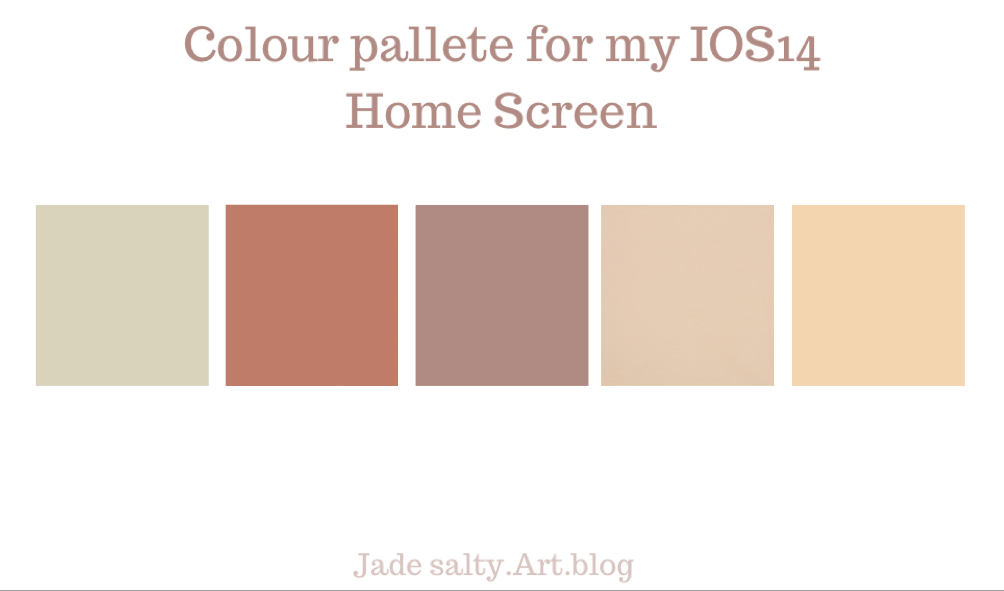
I almost completely forgot about the motivation quote widget! Basically just download the ‘Motivation’ app from the App Store
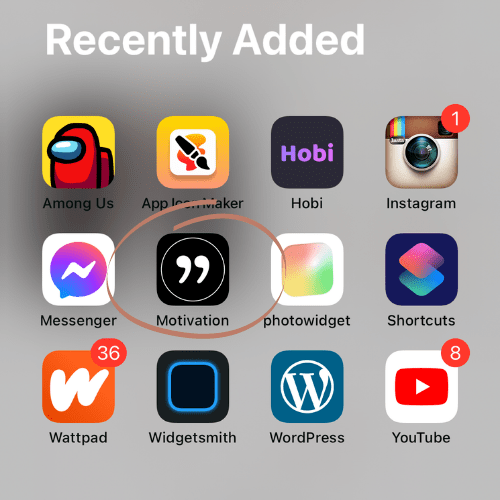
Open the app, complete the little survey thing that they give you. You can choose or customize the theme, and then just exit the app, enter jiggle mode, tap the plus (+) on the upper right hand corner of the Home Screen. Scroll down until you see ‘Motivation’ select what size widget you want and done!
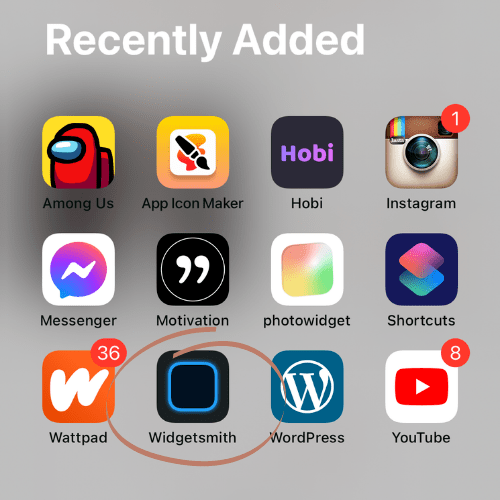
There’s also ‘widgetsmith’ that a lot of people use but it got really glitchy at one point, so I just found alternatives (there’s a lot)
And that’s a wrap! I think. I get all my wall papers from Pinterest (mine is just plain white) but you can obviously find a lot more interesting ones!
I really hope you enjoyed this post and If you find inspiration from this and customize your Home Screen, send me a screenshot!
Thank you if you made it this far and hope to see you in the next one, Jade.
If your dreams don’t scare you, they are to small.
Richard Branson






















 The Salty Times